

Part 1 - Add custom attributes to an Okta user profile
1
In the Admin Console, go to Directory > Profile Editor.
2
Search and select the SSO SAML app for Invoca.
3
Click Add Attribute.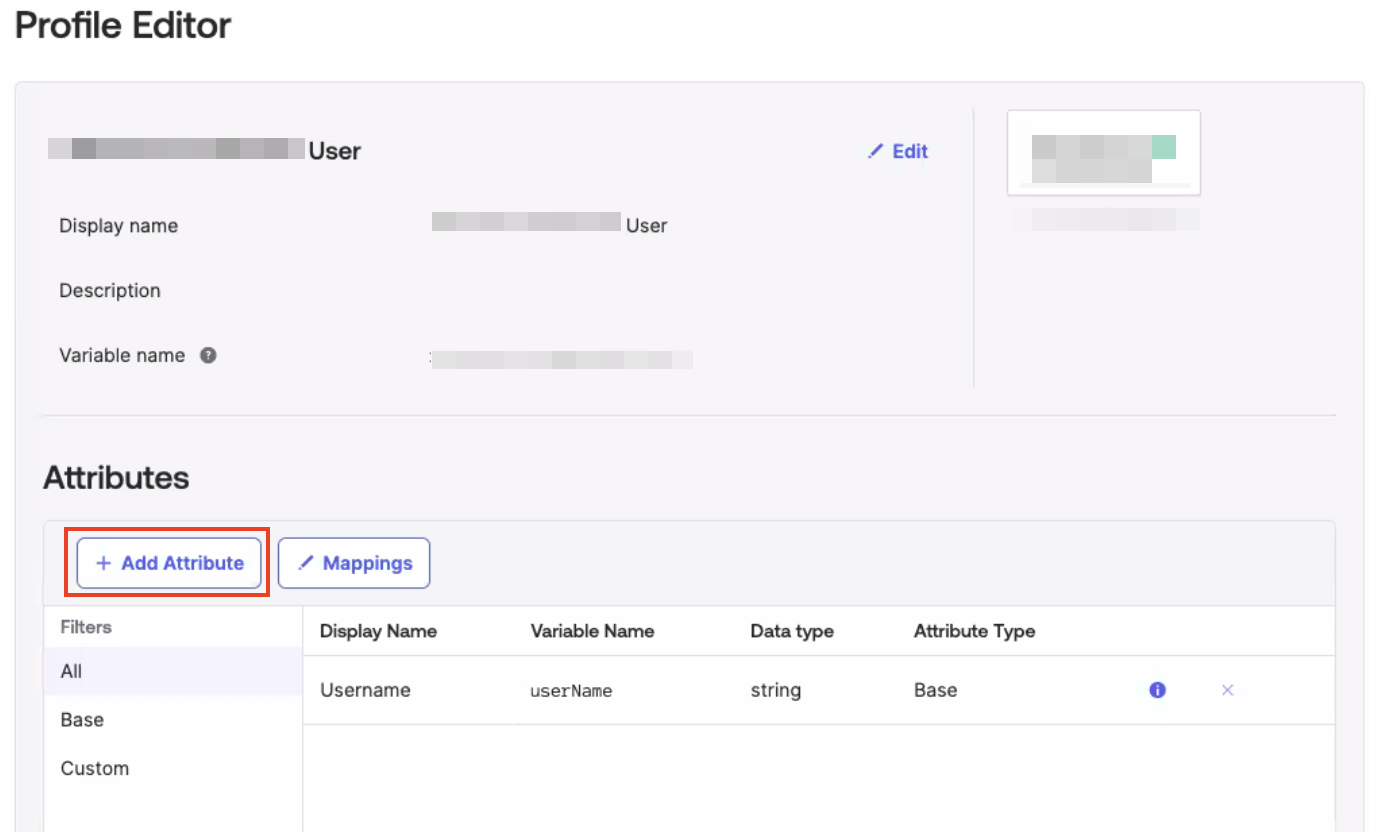
4
Complete these fields:
a. Select the String data type
b. Display name: A human readable label that will appear in the UI
c. Variable name: Name of attribute that can be referenced in mappings
d. Description: Description of the attribute
a. Select the String data type
b. Display name: A human readable label that will appear in the UI
c. Variable name: Name of attribute that can be referenced in mappings
d. Description: Description of the attribute
5
Click Save or Save and Add Another to add another custom attribute.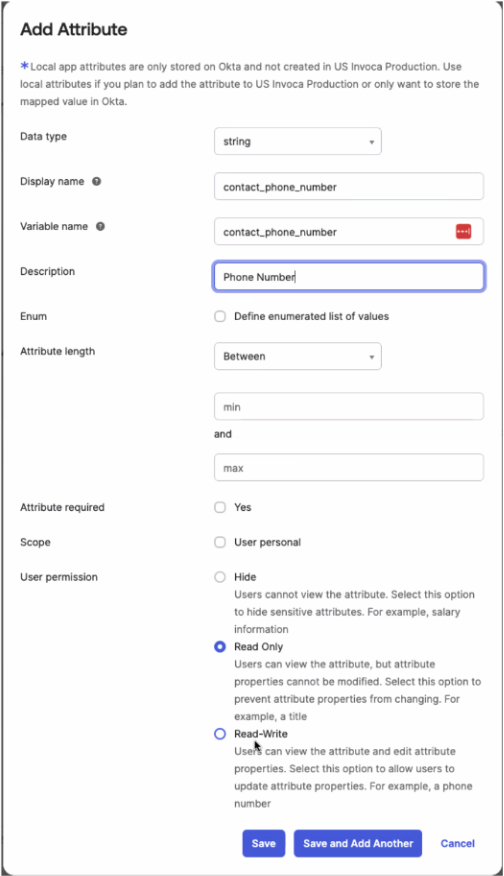
Part 2 - Map Custom Attributes to App Attributes
1
While continuing in the Profile Editor view within the selected Apps in the Filters.
2
Click Mappings for the app and select Configure User mappings if a list appears.
3
Select Okta User to App: Select this tab to map the flow of attributes from Okta to the app. Okta contains the source attributes and the app is the target.
4
Map attributes: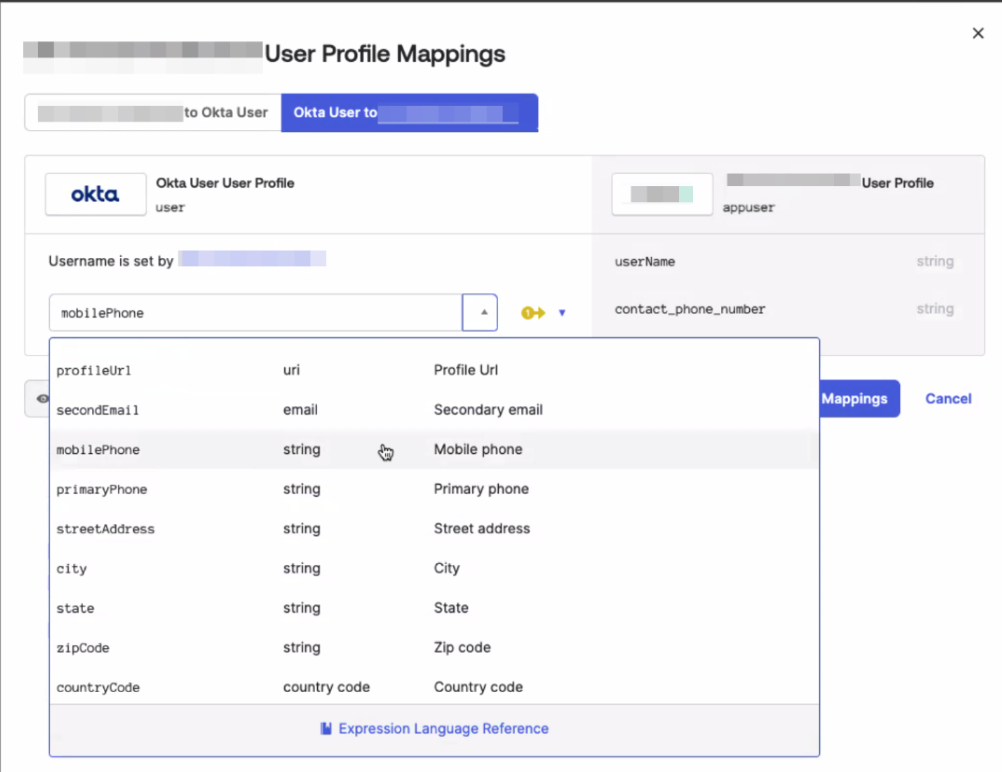
- Scroll down through the attribute mappings.
- Make sure the required attributes are mapped. The Okta or app user profile indicates which are required
- Use the drop-down to add attributes, or use expressions to add attributes with concatenated or transformed values.
5
Click Save Mappings and Apply updates now.